
HSA/FSA Transaction Prompts
Orchestrate
HSA and FSA cards require a few additional steps on the PAX device. You will see prompts that do not appear during standard transactions. To process the payment, follow the steps below.
Prompt 1: "Please Select Account Type"
Action: Select HealthCare
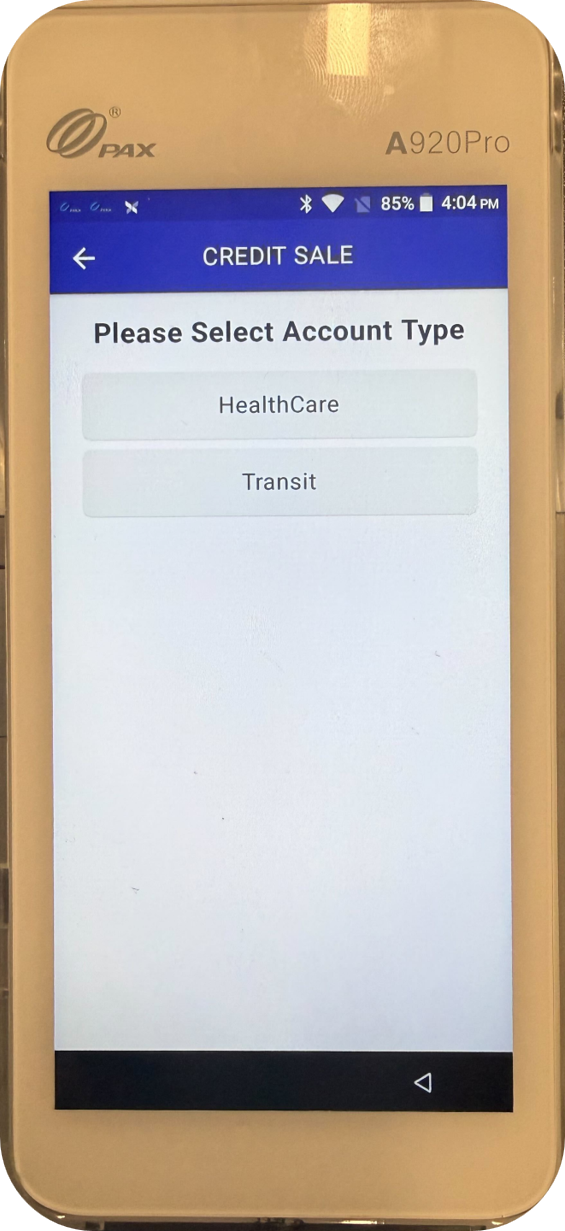
Prompt 2: "Please Select Healthcare Type"
Action: Select Healthcare Total
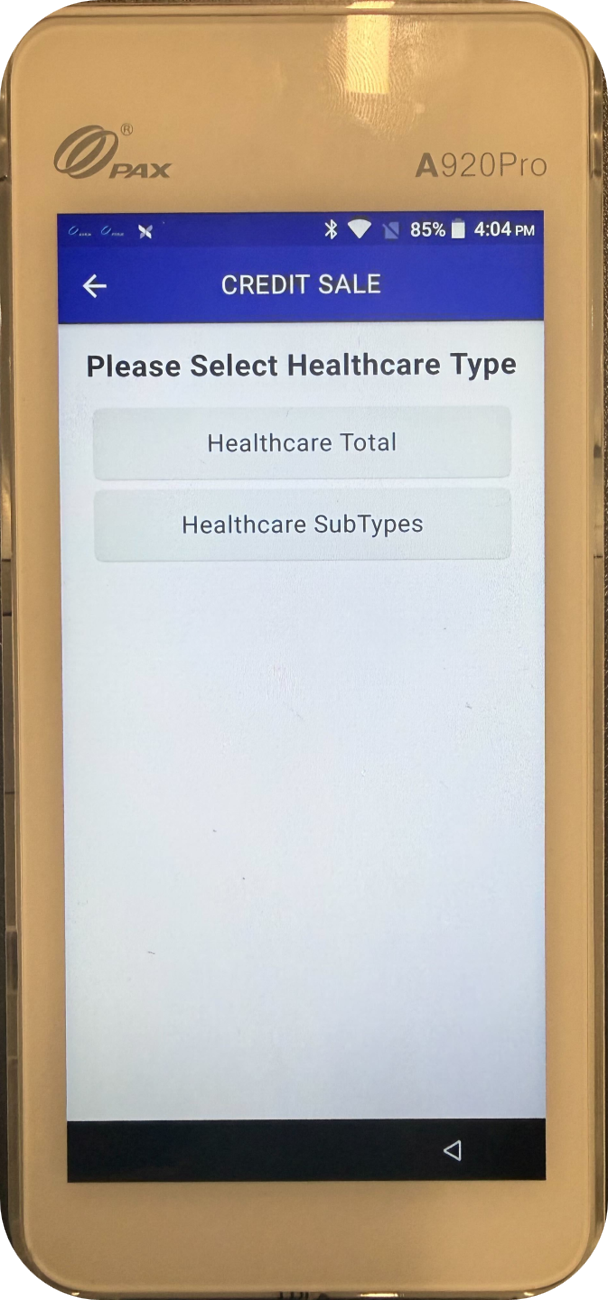
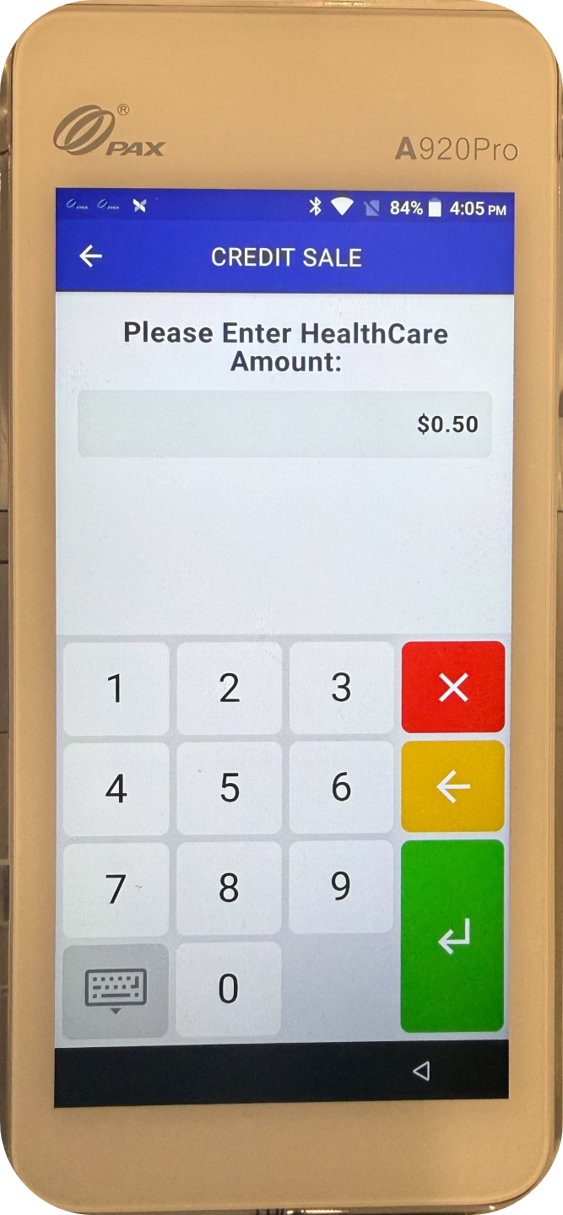
Prompt 3: "Please Enter HealthCare Amount"
Action: Key in the amount of the transaction and press the green enter key. The transaction completes and the transaction result appears on screen.
Have a question? Send us your request on the Customer Support Portal.
- When describing your issue, gather as much information as you can about the issue including Location ID, error messages, screenshots, and user details to expedite the support process.
- To find the Location ID, open the QuickPoint app on the terminal, press and hold the SoftPoint icon at the bottom of the screen for 5–10 seconds, and select Get Help. The Location ID displays on screen.
- For API integrations, please provide the API endpoint details (method and URL), request payload, and response received.
Updated 24 days ago
Did this page help you?